Spaces Utility · macOS Menu-Bar Utility
Give your Mac’s desktops meaningful names.
Name your Spaces, find your apps across displays, and move around your workspace from one simple menu-bar utility.
No card required. No automatic charge.
Apple silicon · macOS 27.2 or newer.
See it working
From numbered desktops to a clear workspace in seconds.
Name desktops “Work,” “Personal,” and “Design,” switch between them, then open Workstation Overview and jump straight to an app.
Menu-Bar Utility
Name your Mac’s desktops
Name desktops “Work,” “Personal,” and “Design”
Open Spaces Utility in the menu bar and give each desktop a clear name and optional emoji.
Built for multi-Space Mac workflows
Three focused tools in one quiet menu-bar app.
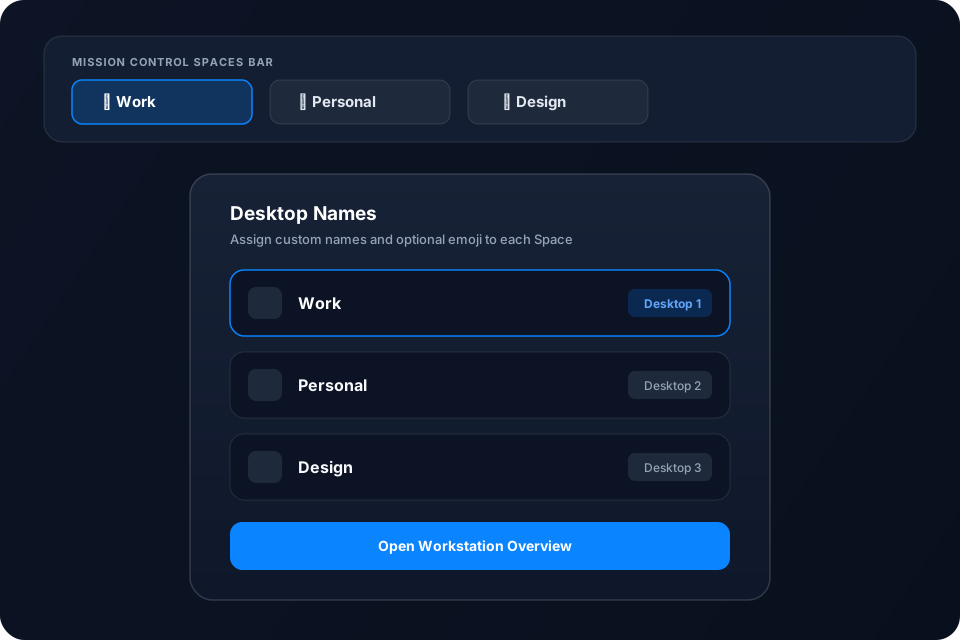
Names that mean something.
Give each desktop a name, with optional emoji.
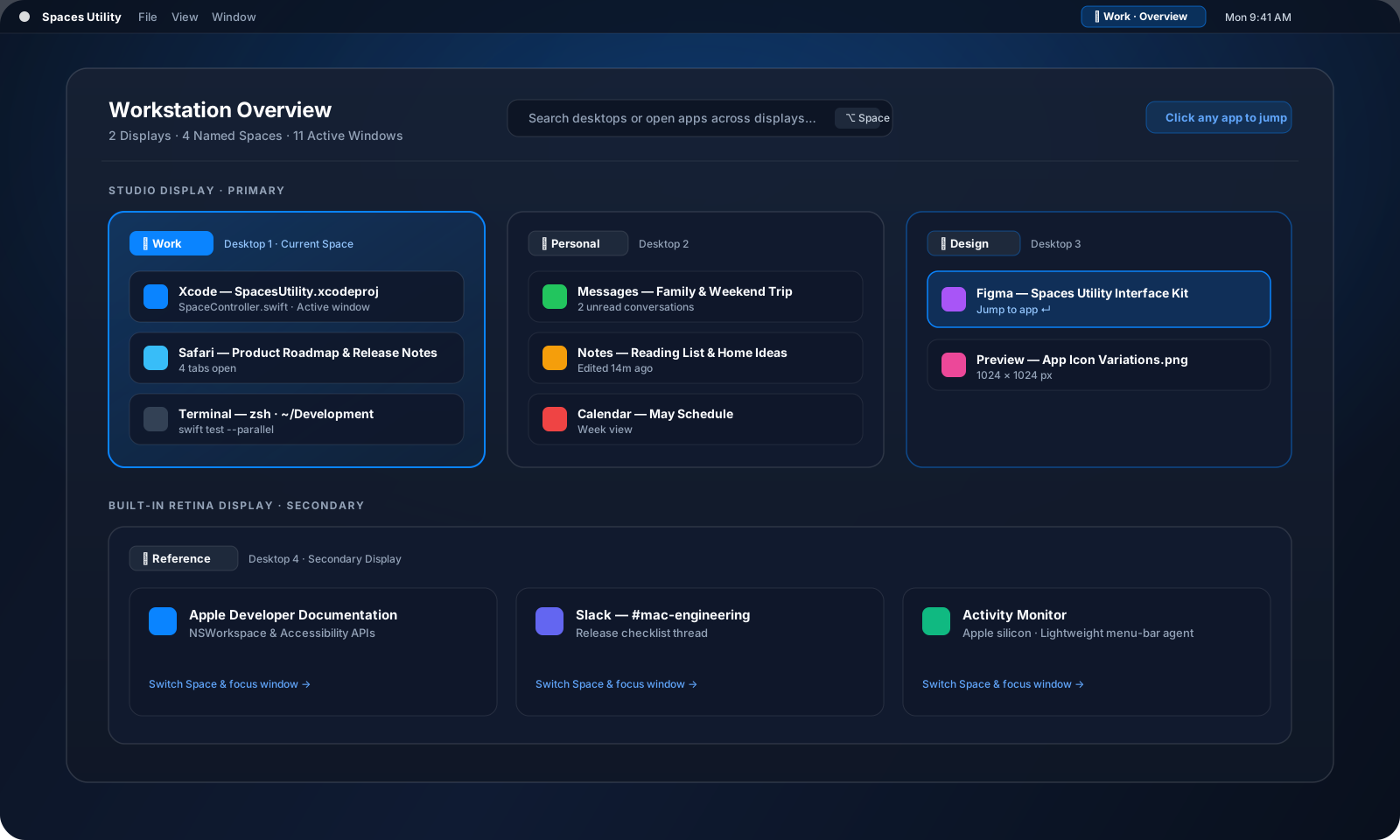
Your workspace at a glance.
See desktops and their apps across your displays.
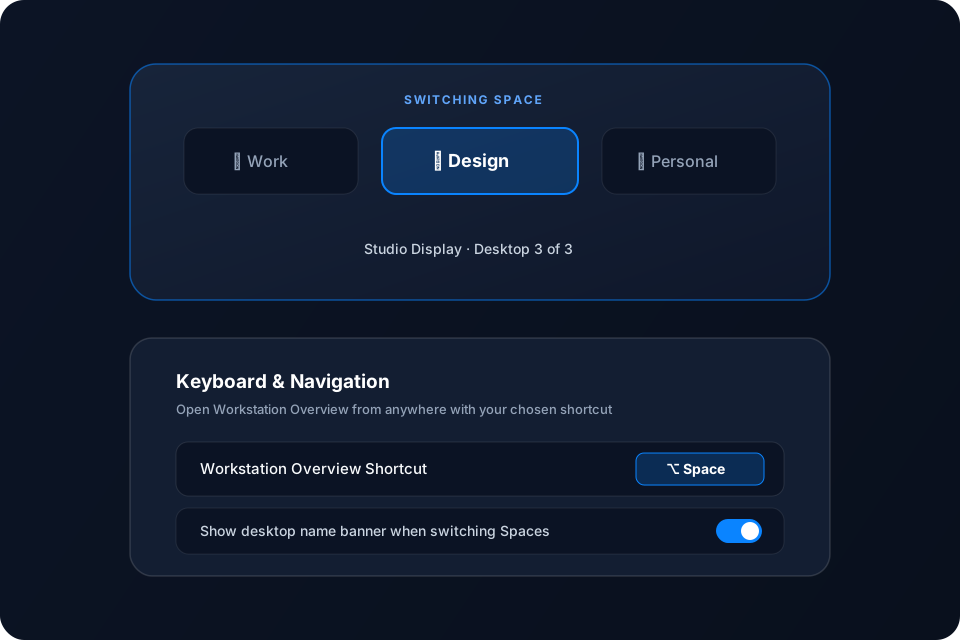
Find your way faster.
See desktop names as you switch Spaces and use a configurable shortcut for Overview.
Your workspace at a glance. See desktops and their apps across your displays.
View every display, named Space, and open window in one unified board—then click any app to switch directly to its desktop.
Names that mean something.
Give each desktop a name, with optional emoji.
Replace generic “Desktop 1” and “Desktop 2” labels with names that match your actual projects, contexts, and routines.
Find your way faster.
See desktop names as you switch Spaces and use a configurable shortcut for Overview.
Stay oriented with a subtle desktop name banner whenever you switch Spaces, and summon Workstation Overview from anywhere with a single shortcut.
Straightforward pricing
€9.99. One purchase. One Mac at a time.
Try everything free for seven days. Buy when you’re ready, and transfer your license when you change Macs.
- Full-featured 7-day free trial
- No credit card required to start trial
- No subscription or automatic charge
- Transferable when you switch Macs
No card required. No automatic charge.
FAQ
Questions & technical details.
Compatibility, permissions, installation, and licensing explained clearly.
Which Macs and macOS versions are supported (including the English desktop-label limitation)?
Spaces Utility requires a Mac with Apple silicon (M1 or newer) running macOS 27.2 or newer. Currently, Mission Control desktop-label recognition requires your macOS system desktop labels to use English (“Desktop 1”, “Desktop 2”, etc.).
What macOS permissions does Spaces Utility need?
Spaces Utility uses macOS Accessibility and Screen Recording / window-inspection permissions to read Space states, render custom desktop labels in Mission Control, list open windows in Workstation Overview, and focus the app you select. All window and workspace inspection happens locally on your Mac.
How do I install Spaces Utility?
Download the installer, drag Spaces Utility into your Applications folder, and launch it. A guided setup prompt walks you through granting the required macOS permissions in System Settings.
How do license transfers work when I change Macs?
Each €9.99 license covers one active Mac at a time. When you move to a new Mac, you can deactivate the previous Mac from Spaces Utility’s license panel (or reassign the license during activation on your new Mac) without buying again.
How does weekly online license validation work?
Spaces Utility performs a lightweight weekly online license validation check to confirm your license stays active on your Mac. Between weekly checks, the app continues working offline.
Give your Mac’s desktops meaningful names today.
Download the 7-day free trial for Apple silicon on macOS 27.2 or newer. No card required.
Apple silicon · macOS 27.2 or newer.